Compatible with Chrome and Edge
Instruction Guide
We have a simple tutorial guide which explains the features of the software extension and what each button inside the extension does. Read our tutorial and welcome guide on how to use the extension to the fullest. Use all the features of this browser software.
If you are interested in other web extensions to install, you might wish to check out the Microsoft Bing Search with Rewards extension.
Microsoft Bing Search with Rewards Extension
It allows you to complete daily offers to get points.
Track the number of points you have currently and the rewards you can redeem with these points.
The ways to get points & get rewarded is search with Bing, browse with Microsoft Edge and shop at the Microsoft and Windows stores to earn rewards.
Sponsored Link:
Other useful extensions
Another extension which would be useful to install is the iCloud bookmarks extension.
It allows to keep your Chrome bookmarks on Windows synced up with the Safari bookmarks on your iPhone, iPad, and Mac.
iCloud will store your website bookmarks so it is accessible even on your iPhone and Mac.
Try these other two extensions and see if it will boost your daily productivity.
Try this Full Page Screenshot to help save time.
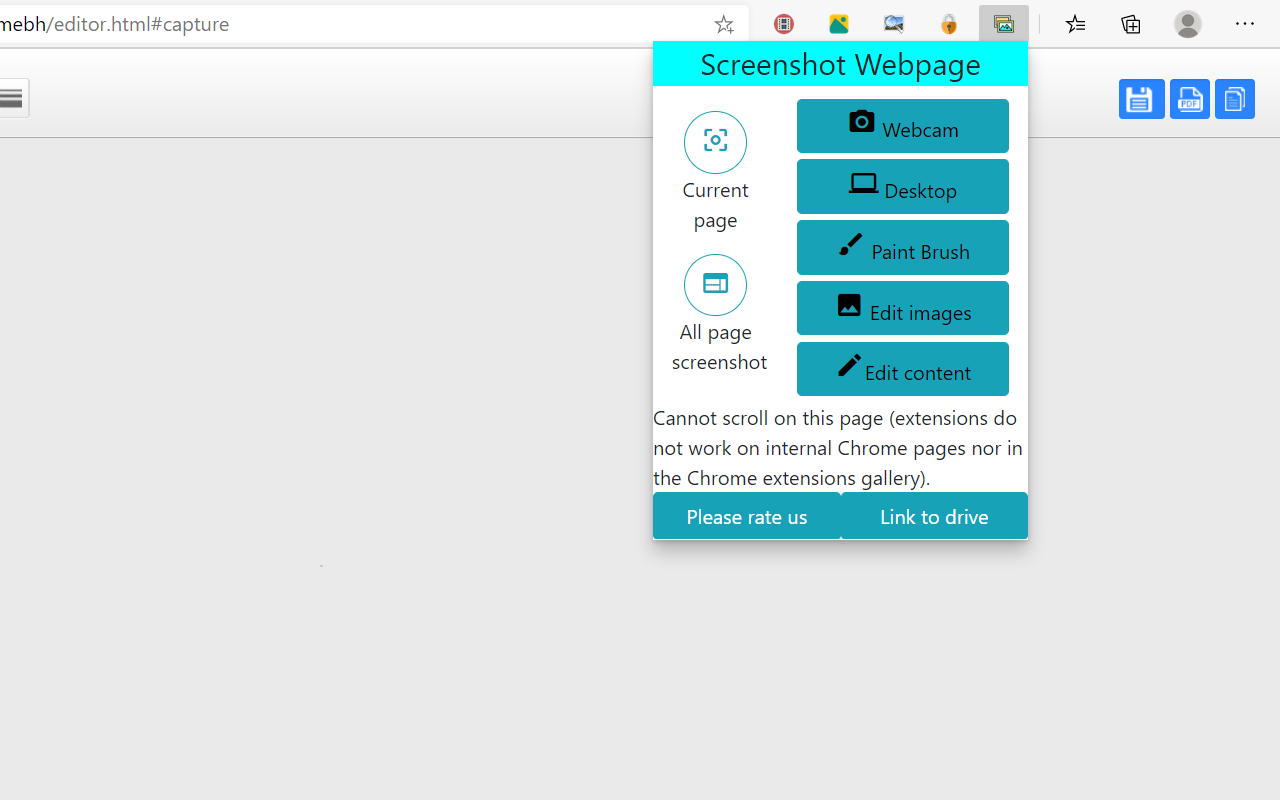
This extension provides you a simple way to take a full page screenshot of your current browser window. Click on the extension icon and wait for the extension to take screenshots of each part of the page, piece them together into one image and allow you to edit and download it as a file to your computer.
- Capture current page.
- Capture full page in a tab browser.
- Custom capture.
- Editing tool.
- Crop image.
- Edit webpage element.
Features:
Snipping Tool is a tool for taking screenshots on Windows. It is handy for capturing images of the desktop, individual windows, and other applications.
Snipping Tool can be used to:
Capture a full-screen screenshot.
Capture a rectangular area of the screen.
Capture an active window.
Print your screenshot to any printer that's available on your PC.
Snipping Tool is a free tool for taking screenshots of a webpage. It can be used to capture the entire webpage, or just a part of it. It's very easy to use, and you can even annotate your snip with shapes, arrows and text.
To take a screenshot of a webpage using Snipping Tool:
1) Open Snipping Tool by clicking on Start button > All Programs > Accessories > Snipping Tool.
2) In the Snipping Tool window, click on New button to open the new snip window. You can also use the keyboard shortcut Ctrl + N to open the new snip window.
3) In the new snip window, move cursor over where you want to take screenshot and click your mouse button once to select that area. A selection box will appear around that area in blue color. You can also resize this selection box by dragging its corners or edges with left mouse button pressed down. To resize this selection box, drag one of its sides onto another side; the selected area will become larger or smaller accordingly. When you are satisfied with your selection box size and shape, release mouse button and accept changes by clicking anywhere outside this selection
Tutorial:
- Install the Extension
- After installing the extension, click on the icon on the toolbar.
Sponsored Link: